Why a price calculator?
"Price on request" ends the visit for many people. They are not ready to sign anything; they want a ballpark figure to decide whether a call is worth it. If they cannot find one on your site, they look for it on the next one.
A calculator gives them that figure without giving away your quote. The visitor answers a few questions and sees an estimate. In return you get the answers you would otherwise ask for on the phone: scope, options, timing. "How much is it?" becomes an enquiry with numbers attached.
It works wherever a price follows from a few inputs: area, quantity, duration, number of people, system size. Where every job is unique, a good quote request form is the better tool.
Plan your pricing logic
Before you write a formula, write down your price list. Almost every price is made of the same parts:
- Base price. The minimum the job costs, such as travel or set-up.
- Quantity times rate. Square metres, hours, items or seats, each with a unit price.
- Surcharges. Options that cost extra, for example express service, weekends or a premium finish.
- Volume discounts. Cheaper from a certain quantity, say 10 percent from 10 seats.
- Minimum price. A floor so that small jobs still pay off.
Then decide how precise the result should be. An exact amount fits when your price really is fixed. In most industries an estimate is more honest, such as "approx. $2,400", or a range built from two calculations. Decide whether you show prices with or without tax, and say so.
Tip: run five real jobs from last year through your logic. If the calculator is far off, a building block is missing.
Build the calculator in WordPress
In Funnelforms Pro the form calculates a number from the answers and shows it live:
- Add the questions. Use a Number field or a Slider for quantities and a Choice for options. Give every choice its price in the Number column.
- Add a calculation. Under Settings → Calculations, add one and name it "Price". Insert a field puts your questions into the formula without typos.
- Write the formula. For a cleaning service:
max([area] * 2.4 + [extras]; 89), which is area times rate plus surcharges, never below the minimum. A discount tier usesif, for example[seats] * 25 * if([seats] >= 10; 0.9; 1). - Try it out. Enter answers under Try it out and check the result, including zero and empty answers.
- Format the result. Decimal places, number format and unit decide how it looks. Custom text before the number turns it into "approx. $2,400".
- Show the result. Show the result inserts it into a step before the contact step, the thank-you page or an email.
Split large pricing models into partial results, such as materials and labour, and combine them with Insert a result. The formula stays on your server: visitors only see the result, and the plugin recalculates it on submit.
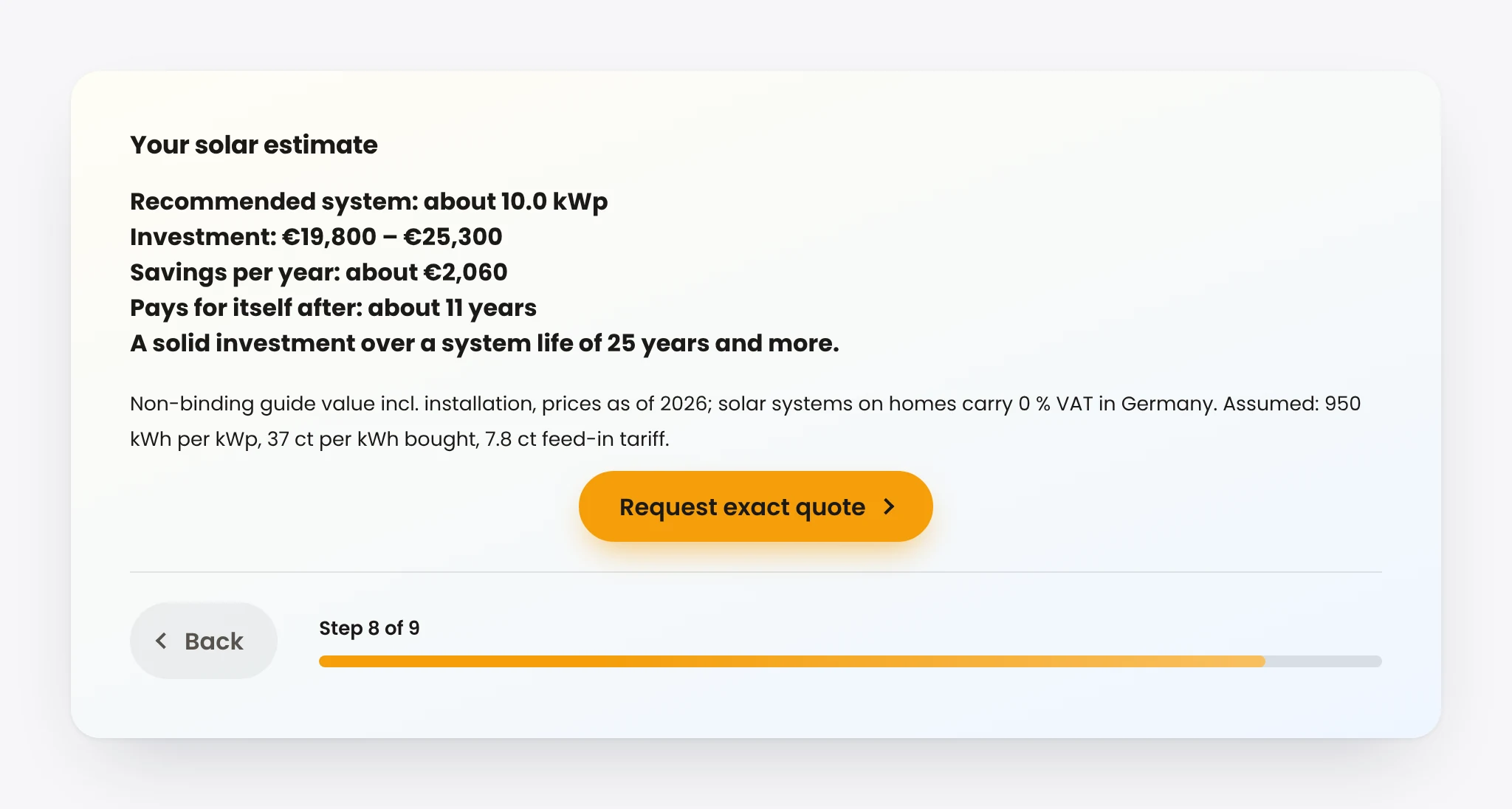
Three examples to copy
The numbers are examples. Use your own prices.
- Moving. Rooms, floors without a lift and distance. Formula:
[rooms] * 180 + [floors] * 40 + [miles] * 2.4. Anyone moving further than 30 miles gets a call-back step instead of a price. - Solar. Roof area, orientation and battery. One calculation estimates the system size, a second one the price range. Unsuitable roofs go to their own ending via Continue by result.
- Website project. Number of pages, a percentage surcharge for extra languages and modules as a multiple choice. The choice adds up the selected modules by itself.
Ready-made funnels with a calculator are in the templates and on the industry pages.
From estimate to enquiry
A calculator only becomes a lead tool when the result is followed by a sensible next step:
- Result before the contact step. People trust a form more when they see the price before they type their details. Then ask: "Shall I send you an exact quote?"
- Continue by result. Large jobs go straight to appointment booking, small ones to a quote by email. Rules check the result from top to bottom; Otherwise catches the rest.
- Carry the result everywhere. The amount is in the entry, in your notification email and, if you like, in the entry PDF. As a lead score it sorts your entries by value. For direct payment, Stripe, PayPal or Mollie take the amount as price or deposit.
From three entries on, the form analytics show average, median and distribution of results, so you can see which job sizes your calculator actually brings in.
Limits and common mistakes
- Too many questions before the price. Only ask what changes the price. Everything else comes after the result.
- Promised precision. Label the result as a non-binding estimate if your price depends on a site visit, and check local rules on showing prices to consumers.
- Division by zero. If the formula divides by an answer, guard it with
max([quantity]; 1), or visitors see an error. - Outdated prices. When your prices change, update the numbers on the answers and publish again, just like your price list.
Frequently asked questions
Does a price calculator work with Funnelforms Free?
No. Calculations are part of Funnelforms Pro. In Free you can send visitors to different steps by answer and show fixed package prices as text.
Can visitors see my formula?
No. The form asks the plugin on your server for the result, and the plugin recalculates it when the form is submitted.
Can I show a price range instead of a fixed price?
Yes. Add two calculations, one for the low and one for the high value, and insert both into the same step.
Can visitors pay the calculated amount right away?
Yes, in Pro. The payment after the contact step uses the result of a calculation as the amount, through your Stripe, PayPal or Mollie account.